Plan Your Day with Weather Radar: Master Your Schedule with GoWeatherRadar
Plan your day with weather radar to make smarter decisions before heading out. GoWeatherRadar helps you check local conditions, track rain movement, and explore weather patterns on an interactive map. Scroll down to learn how to use live radar to choose better times and prepare for changing weather!
Plan your day with GoWeatherRadar
Why Use Live Weather Radar to Plan Your Day
Weather can change quickly, making it difficult to plan your day around work, travel, and outdoor activities.
Live weather radar helps you monitor local conditions and spot approaching rain before you leave home.
Instead of relying only on a daily forecast, you can view weather patterns on an interactive map and make more informed decisions.
GoWeatherRadar brings several weather layers together in one place, including rain, snow, wind, temperature, pressure, humidity, and clouds.
You can switch between layers to check the conditions that matter most to your plans.
Its map also uses the ECMWF 9 km forecast model, with the displayed data updated at intervals of around 12–13 hours.
This information can help you decide when to commute, whether to bring an umbrella, or if you should reschedule an outdoor activity.
You can also adjust the map settings to display familiar units, making weather information easier to understand in seconds!
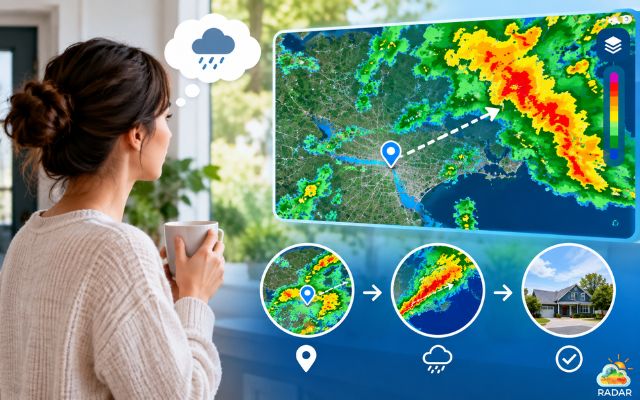
Live weather radar helps you monitor local conditions on an interactive map
How To Use GoWeatherRadar for Daily Planning
GoWeatherRadar makes it easier to check local weather conditions before planning your daily activities.
Follow these four steps to read the radar map and make more informed decisions about your schedule.
Step 1: Access the Map and Pinpoint Your Location
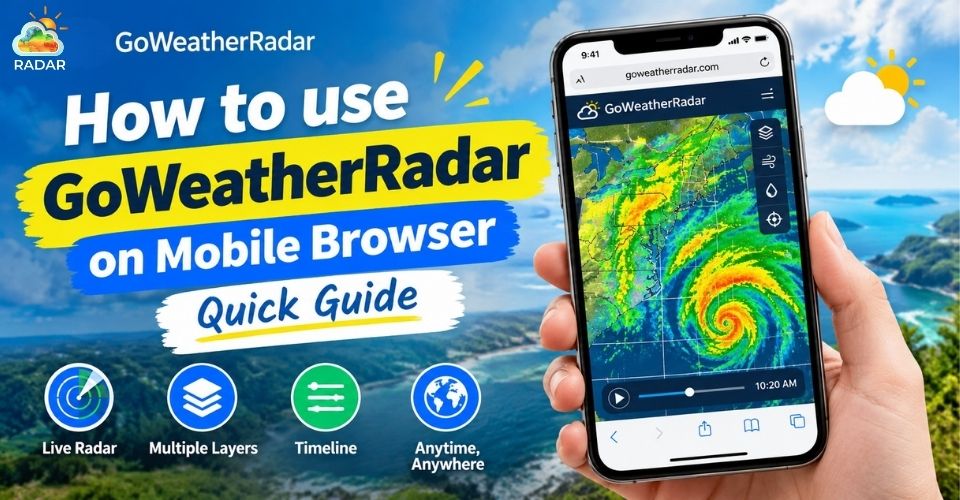
Open GoWeatherRadar Radar Map in your mobile or desktop browser.
Use the location control, if available, to find weather conditions near your current position.
If you are planning a trip, commute, or outdoor event elsewhere, use the map’s search function to look up your destination.
Checking both your starting point and destination can help you prepare for different weather conditions along the way.
Step 2: Select the Rain or Precipitation Layer
Choose the rain or precipitation layer from the available map controls to focus on areas affected by rainfall.
Check where rain is developing and whether it is approaching your location.
For outdoor activities, you can also explore other available layers, such as wind or temperature, to understand additional weather conditions that may affect your plans.
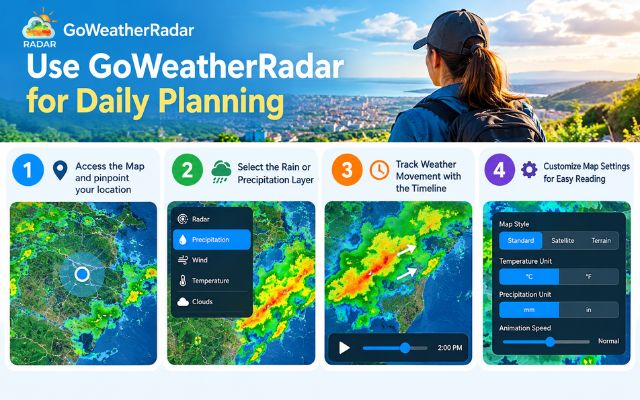
Easily tracking weather changes on GoWeatherRadar
Step 3: Track Weather Movement with the Timeline
Use the map’s timeline controls, if available, to review weather changes over time. Pay attention to the direction and intensity of precipitation.
Rain moving toward your area may affect your travel plans, while rain moving away could indicate improving conditions.
Always check the timeline labels to distinguish observed radar data from forecast information.
Avoid assuming that the map can predict the exact time rain will stop.
Continue reading: How to read hurricane map
Step 4: Customize Map Settings for Easy Reading
Open the settings menu, if available, to adjust measurement units to your preference.
For example, choose Celsius or Fahrenheit for temperature and kilometers per hour or miles per hour for wind speed.
Familiar units make weather information easier to understand quickly.
Before leaving home, review the radar alongside the local forecast and official weather alerts to make better-informed decisions about your day.
For a comprehensive breakdown on how to use GoWeatherRadar, drop by here!
How to Read Radar Colors on GoWeatherRadar
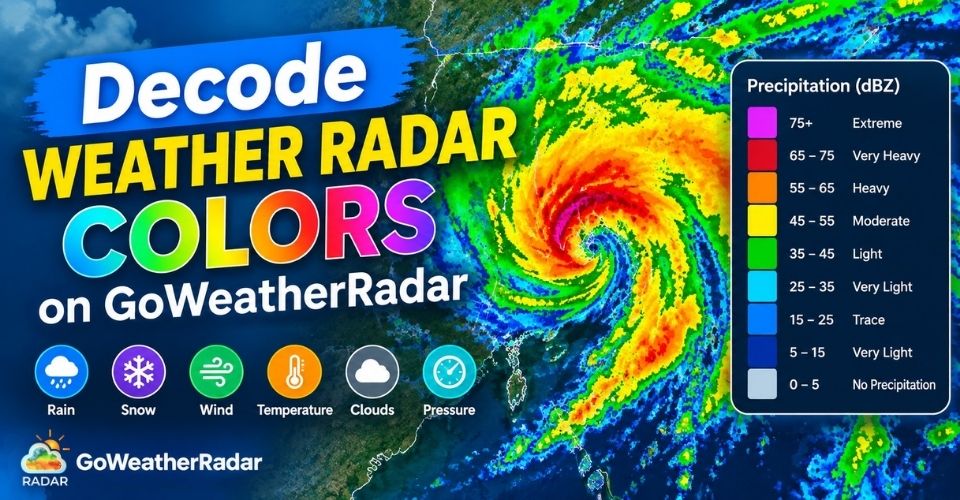
Different radar colors represent different weather conditions and intensity levels. Use this quick guide to understand the main layers on GoWeatherRadar.
|
Weather Layer |
Color |
Reference Values |
|
Rain / Precipitation layer |
Dark purple / slate |
Below 5 mm |
|
Blue / teal |
5–10 mm |
|
|
Green / emerald |
20–40 mm |
|
|
Pink |
Around 1 m |
|
|
Temperature layer |
Purple |
Around −20°C |
|
Teal / cyan |
−10°C to 0°C |
|
|
Green |
0°C to 10°C |
|
|
Yellow |
10°C to 20°C |
|
|
Orange |
20°C to 30°C |
|
|
Red / dark red |
30°C to 40°C+ |
|
|
Wind layer |
Blue |
0–3 m/s |
|
Teal |
3–5 m/s |
|
|
Green |
5–10 m/s |
|
|
Yellow / ochre |
10–15 m/s |
|
|
Red / magenta |
15–20 m/s |
|
|
Purple |
Around 30 m/s |
|
|
Snow layer |
Purple / indigo |
Around 2 cm |
|
Blue / teal |
5–10 cm |
|
|
Green / yellow-green |
10–50 cm |
|
|
Ochre / brownish red |
Around 1 m |
|
|
Magenta / dark pink |
Around 3 m |
|
|
Cloud layer |
Blue / steel blue |
1.5–2 mm liquid content |
|
Teal |
Around 3 mm |
|
|
Green |
Around 7 mm |
|
|
Yellow-green / ochre |
Around 10 mm |
|
|
Dark red / magenta |
20–30 mm |
|
|
Atmospheric Pressure |
Light teal / cyan |
Around 990 hPa |
|
Deep teal |
Around 1,000 hPa |
|
|
Dark blue |
Around 1,010 hPa |
|
|
Green / yellow-ochre |
Around 1,020 hPa |
|
|
Reddish brown / plum |
Around 1,030 hPa |
For details about each color intensity, check out Weather radar colors!
Final Words
Plan your day with greater confidence by checking local weather conditions before heading out. GoWeatherRadar helps you track precipitation, explore weather layers, and monitor changing conditions on an interactive map. Whether you're commuting or planning outdoor activities, visit GoWeatherRadar Radar Map to make informed decisions and keep your daily plans flexible.


0 Comments
Leave a Comment
Your email address will not be published. Required fields are marked *