Learn How to Use GoWeatherRadar and Read the Color Scales in Minutes
How to use GoWeatherRadar to track rain, wind, temperature, and changing weather conditions in one interactive map? With multiple weather layers and ECMWF-powered forecasts, GoWeatherRadar helps you explore local conditions and spot potential changes. Follow this step-by-step guide to read color scales, customize map settings, and make more informed decisions when planning your day!
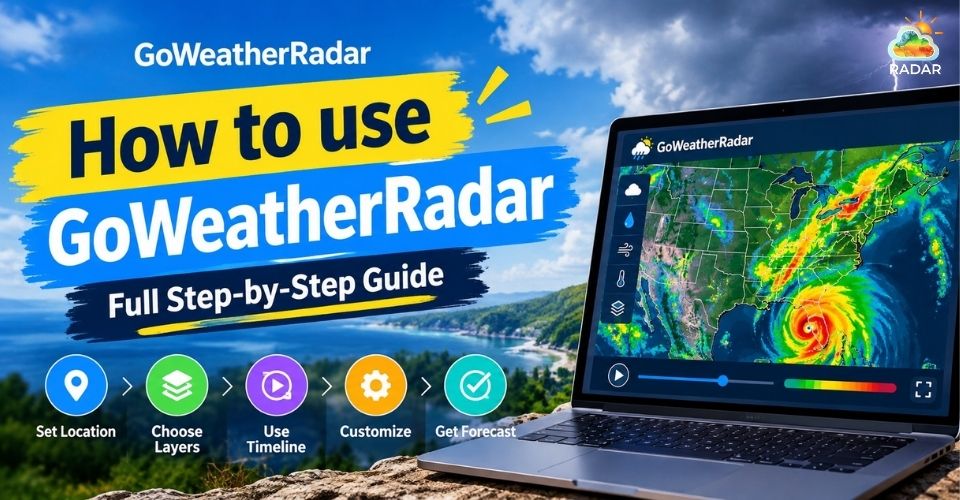
How to use GoWeatherRadar
How to Use GoWeatherRadar in 5 Steps
GoWeatherRadar makes it easy to explore weather conditions on an interactive map.
You can find your location, switch between weather layers, check color-coded data, and view forecast changes over time.
Follow these five steps to get started and use the map to plan your day with more confidence.
Step 1: Open GoWeatherRadar and Find Your Location
To learn how to use GoWeatherRadar, first visit GoWeatherRadar Radar Map to open the interactive weather map.
To check conditions in a specific area, enter a city name or ZIP code in the search bar.
You can also click the location icon to center the map on your current position, if location access is enabled.
Once your location appears, you can move around the map to explore nearby areas or check weather conditions elsewhere.
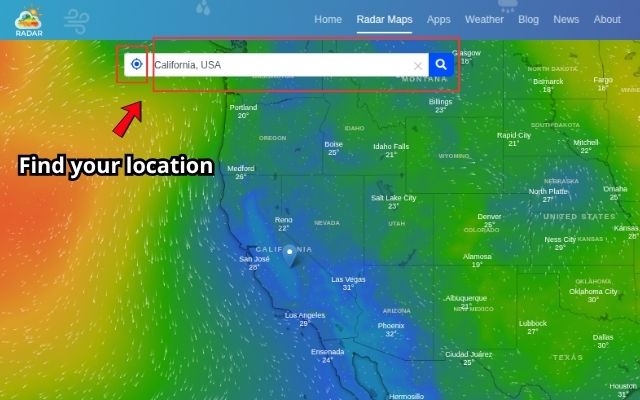
Search for a city or use your location to check local weather conditions
Step 2: Navigate and Adjust the Map View
Use the + and − buttons to zoom in on local areas or zoom out for a wider view.
You can also drag the map to explore different locations.
On a computer, the mouse scroll wheel provides another way to zoom.
For a clearer view, use fullscreen mode if the option is available in your current interface. This gives you more space to examine weather patterns across a larger area.
If you need a more detailed local forecast, see our guide to checking your local weather forecast.
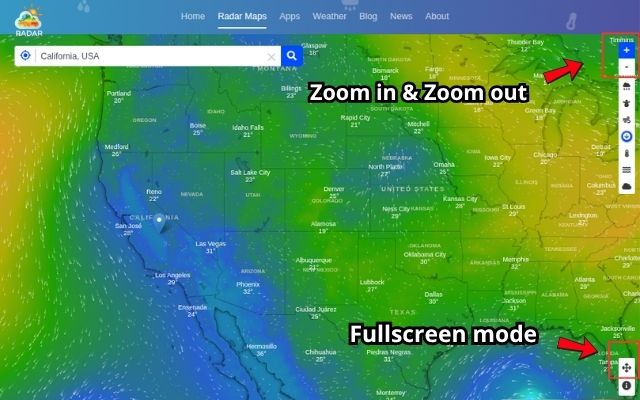
Zoom in, zoom out, and explore weather patterns across different areas
Step 3: Switch Weather Layers and Read the Color Legend
GoWeatherRadar offers several weather layers, including Rain, Wind, Temperature, Snow, Pressure, Humidity, and Clouds.
Select a layer to focus on the conditions you want to monitor.
Each layer uses its own color scale, so check the on-screen legend to understand the displayed values and units.
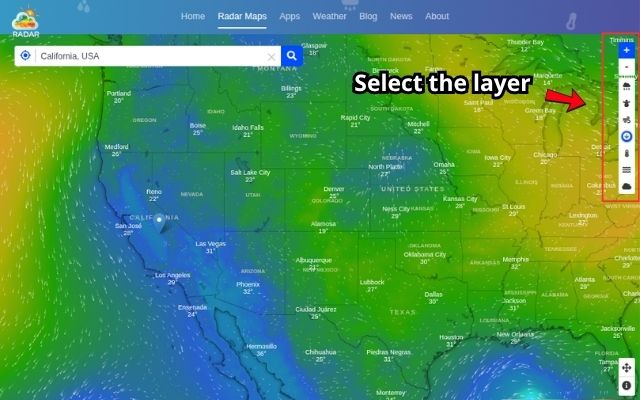
Select a weather layer and use the color legend to interpret the data
Step 4: Explore Forecasts with the Timeline
When learning how to use GoWeatherRadar, use the timeline slider at the bottom of the map to explore weather conditions at different times.
Move along the timeline to compare the displayed conditions and see how the forecast may change over the coming hours or days.
GoWeatherRadar identifies ECMWF 9km as its forecast model, but remember that forecasts are estimates and may change as new information becomes available.
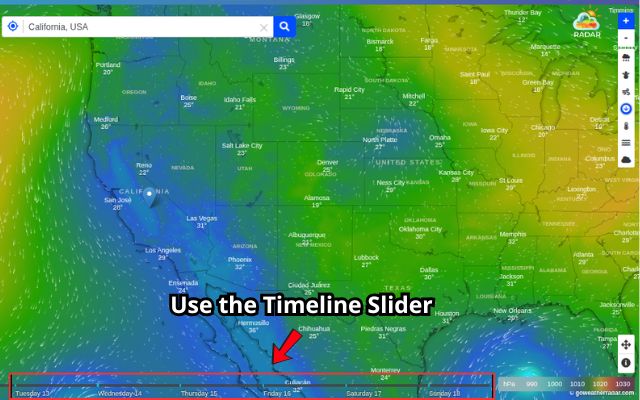
Move along the timeline to see how forecast conditions may change
Step 5: Customize Map Settings and Share Your View
Open the Settings menu to adjust the map to your preferences.
Available options include
-
Temperature in °C or °F,
-
Wind speed in km/h, mph, knots, or other supported units
-
Precipitation in millimeters or inches.
You can also adjust the time format, timezone, and language.
If you want to show someone the same weather view, look for the sharing option in the interface. If available, use it to share the map with others.
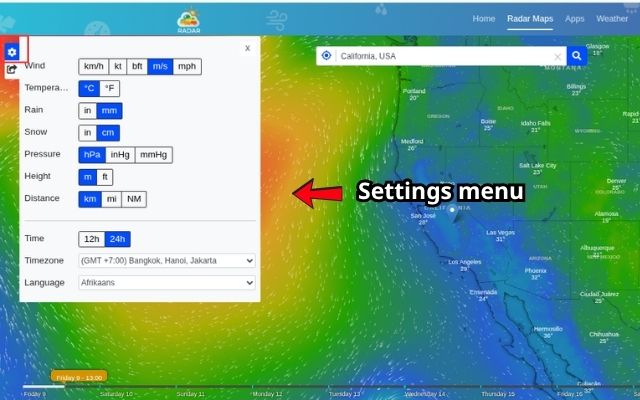
Adjust measurement units and share your preferred map view when available
Continue reading: How to use GoWeatherRadar on mobile browser
How to Read Colors on GoWeatherRadar Map
GoWeatherRadar uses color-coded maps to help you understand weather conditions at a glance.
Each layer has its own color scale, showing values such as temperature, wind speed, precipitation, and humidity.
To interpret the map correctly, select a weather layer and match its colors with the legend displayed on the screen.
|
Weather Layer |
Color |
Reference Values |
|
1. Rain & Precipitation |
Dark Purple / Slate |
<5mm |
|
Blue / Teal |
5-10mm |
|
|
Green / Emerald |
20-40mm |
|
|
Pink |
1m |
|
|
2. Temperature |
Purple |
20°C |
|
Teal / Cyan |
-10°C to 0°C |
|
|
Green |
0°C to 10°C |
|
|
Yellow |
10°C to 20°C |
|
|
Orange |
20°C to 30°C |
|
|
Red / Dark Red |
30°C to 40°C+ |
|
|
3. Wind Speed |
Blue |
0-3m/s |
|
Teal |
3-5m/s |
|
|
Green |
5-10m/s |
|
|
Yellow / Ochre |
10-15m/s |
|
|
Red / Magenta |
15-20m/s |
|
|
Purple |
30m/s |
|
|
4. Snow Accumulation |
Purple / Indigo |
2cm |
|
Blue / Teal |
5-10cm |
|
|
Green / Yellow-Green |
10-50cm |
|
|
Ochre / Brownish Red |
1m |
|
|
Magenta / Dark Pink |
3m |
|
|
5. Cloud Density |
Blue / Steel Blue |
1.5-2mm liquid content |
|
Teal |
3mm liquid content |
|
|
Green |
7mm liquid content |
|
|
Yellow-Green / Ochre |
10mm liquid content |
|
|
Dark Red / Magenta |
20-30mm liquid content |
|
|
6. Atmospheric Pressure |
Light Teal / Cyan |
990hPa |
|
Deep Teal |
1000hPa |
|
|
Dark Blue |
1010hPa |
|
|
Green / Yellow-Ochre |
1020hPa |
|
|
Reddish Brown / Plum |
1030hPa |
More to explore
- How to read a hurricane map
- Live temperature radar
- Weather radar color
Tips for Getting the Most Out of GoWeatherRadar
GoWeatherRadar becomes more useful when you combine its weather layers and check how conditions may change over time.
These tips can help you get more value from the map in everyday situations.
-
Combine Weather Layers: Check rain, wind, and temperature together to understand local conditions before planning outdoor activities.
Learn more about the differences between weather forecasts and radar maps.
-
Monitor Severe Weather: Use the Rain layer and timeline to follow precipitation patterns and identify areas where conditions may worsen.
If a storm is approaching, check storm activity on radar and follow official weather warnings.
-
Check Wind Before Outdoor Activities: Review wind speeds before hiking, cycling, or boating. Strong winds can affect safety, so compare the map with local forecasts before heading out.
-
Compare Forecast Times: Move along the timeline to see how conditions may change throughout the day. This can help you choose a more suitable time for travel or outdoor plans.
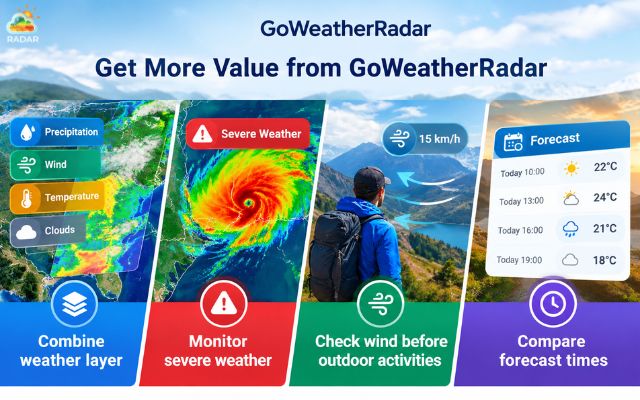
Combine weather layers to get a comprehensive weather condition
More to explore
How accurate is GoWeatherRadar
Radar vs satellites weather
Sum up
Learning how to use GoWeatherRadar helps you track rain, wind, temperature, and other weather conditions on one interactive map. By exploring different layers, reading color scales, and checking forecast changes, you can make more informed daily plans. For the best results, combine GoWeatherRadar with official weather alerts to stay prepared for changing conditions.


0 Comments
Leave a Comment
Your email address will not be published. Required fields are marked *