Learn How to Use GoWeatherRadar on Mobile Browser in Just Minutes
How to use GoWeatherRadar on mobile browser is simple: open the website, explore interactive radar maps, and track changing weather conditions without installing an app. With accessible map controls and multiple weather layers, GoWeatherRadar makes it easier to check rain, wind, and temperature on the go. Follow this quick guide to get started in minutes!
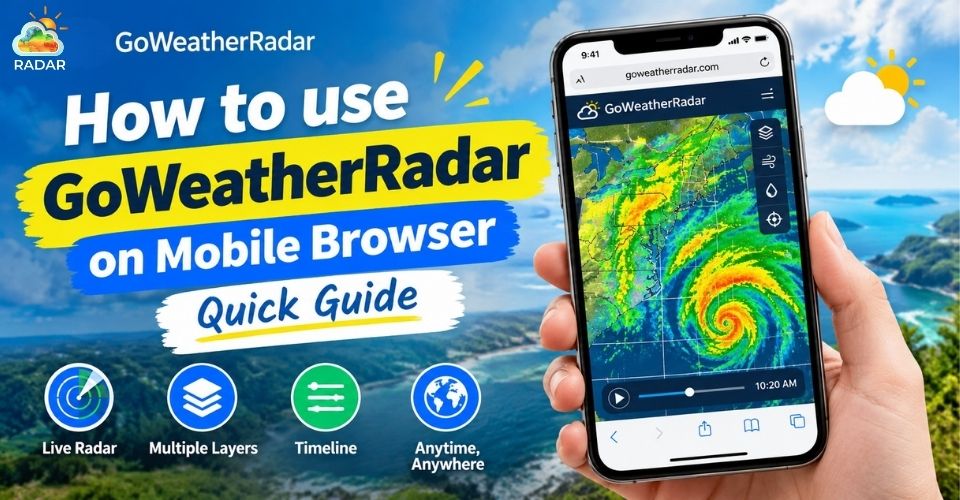
How to use GoWeatherRadar on mobile browser
How to Use GoWeatherRadar on Mobile Browser
GoWeatherRadar lets you check weather conditions directly from your mobile browser without installing an app.
You can explore the radar map, track different weather conditions, adjust settings, and share map links in just a few steps.
Step 1: Open the Radar Map
Open GoWeatherRadar in your mobile browser, such as Safari or Chrome.
You can access the radar map in two ways:
-
Through the navigation menu: Tap the hamburger menu (three horizontal lines) in the top-right corner and select Radar Maps.
-
Through the homepage: Scroll down to the weather layer shortcuts and select a layer such as Wind, Temperature, Snow, Rain, Pressure, Humidity, or Cloud to open the corresponding map.
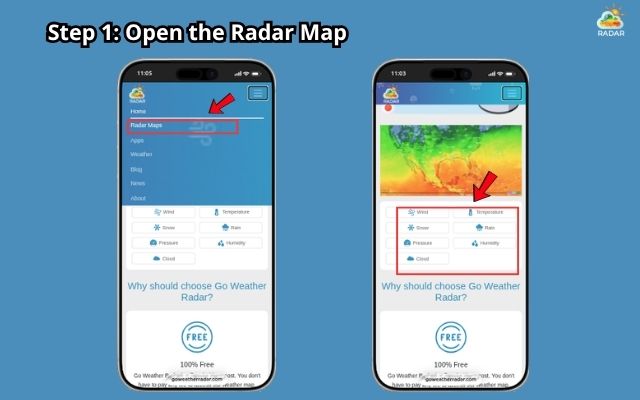
Access GoWeatherRadar on Safari or Chrome
Step 2: Navigate the Interactive Radar Map
Once the map opens, use simple touch gestures to explore weather conditions in different areas.
-
Zoom in or out: Pinch two fingers together or spread them apart to adjust the map view.
-
Move around the map: Drag with one finger to explore nearby areas or distant locations.
-
Search for a location: Enter a place name, such as Hanoi, in the search bar to find the area you want to check.
-
Return to your location: Tap the location or target icon to center the map on your current position. Your browser may ask for location permission.
These controls help you check local weather conditions or explore weather patterns in other regions.
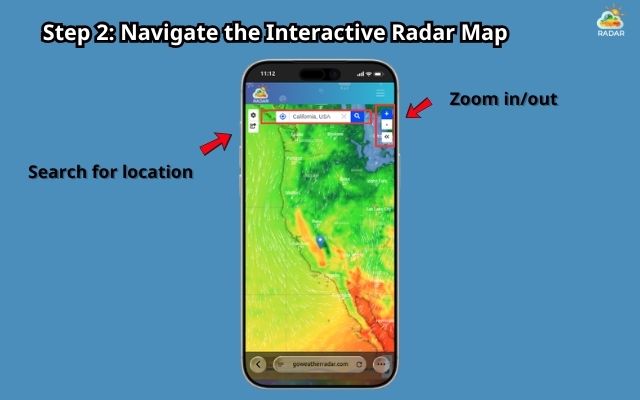
Search your location in the search bar
Step 3: Switch Between Weather Layers
GoWeatherRadar allows you to view different weather conditions on the same interactive map.
To switch layers on mobile, tap the double-arrow icon («) on the right side of the map to open the layer menu.
Choose the layer you want to explore, such as:
-
Rain: Check rainfall and precipitation patterns.
-
Wind: View wind conditions across different areas.
-
Temperature: Explore temperature patterns.
-
Snow: Monitor snowfall and winter weather conditions.
-
Pressure: View atmospheric pressure patterns.
-
Humidity: Check moisture levels in the air.
-
Cloud: Explore cloud cover across the map.
Select another layer whenever you need a different view of current weather conditions.
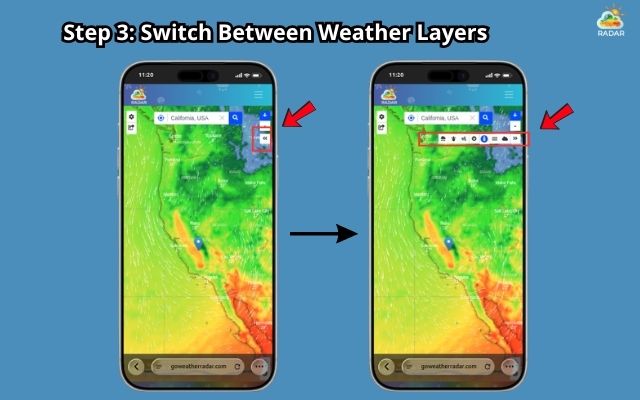
Tap the double-arrow to choose the weather layer
Master these layers by learning Weather radar color!
Step 4: Customize Units and Time Settings
You can adjust the map settings to make weather information easier to understand.
Tap the gear icon in the upper-left corner of the map to open the settings menu.
Depending on the available options, you can customize:
-
Measurement units: Choose familiar units for wind speed, temperature, precipitation, and atmospheric pressure.
-
Time format: Switch between 12-hour and 24-hour formats.
-
Time zone: Select a time zone that suits your location.
-
Language: Choose your preferred display language, if available.
These settings help you read weather data in a format that works best for you.
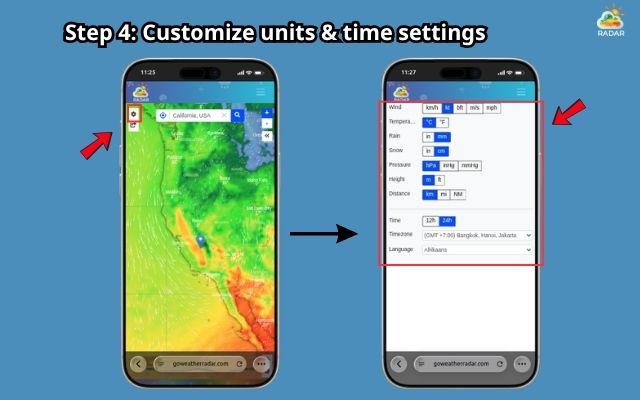
Tap the gear icon to customize the radar map
Step 5: Share the Radar Map
If you want to share weather information with friends, family, or colleagues, you can copy the map link or use the available social sharing options.
-
Tap the Share icon near the settings button on the map.
-
Select Copy to copy the provided link, if this option is available.
-
Paste the link into a message, email, or social media post.
You can also use the available social sharing options to send the map to others. This makes it easier to share weather conditions when planning outdoor activities or checking potential storms.
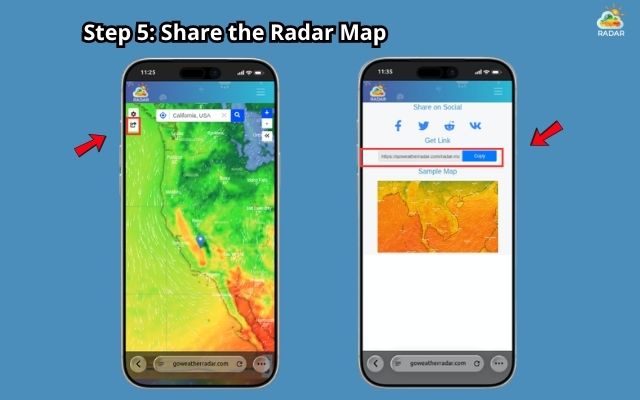
Copy the provided link to share the map
For a complete guide on how to use GoWeatherRadar, drop here!
Troubleshooting Common Mobile Browser Issues
Having trouble using GoWeatherRadar on your phone? Issues like location errors, slow map loading, or difficulty scrolling can interrupt your weather checks.
Fortunately, most mobile browser problems are easy to fix. Here are simple solutions to help you get back to tracking weather conditions smoothly.
Issue 1: Radar Map Cannot Detect Your Location
Solution: Check your browser's location permissions.
-
On Safari, open your iPhone's Settings and review location access for Safari.
-
On Chrome, open the site settings and allow location access for GoWeatherRadar. Then, reload the page and tap the location icon again.
Issue 2: Radar Map Loads Slowly on Mobile Data
Solution: Switch to a stable Wi-Fi connection if available. Close unnecessary browser tabs, clear your browser cache if the problem persists, and reload the map.
You can also try reopening GoWeatherRadar in a new tab.
Issue 3: Scrolling the Page Moves the Map Instead
Solution: Swipe outside the map area to scroll the webpage. To explore the map, use touch gestures within the map itself.
If scrolling remains difficult, try zooming out slightly or repositioning the map before continuing.
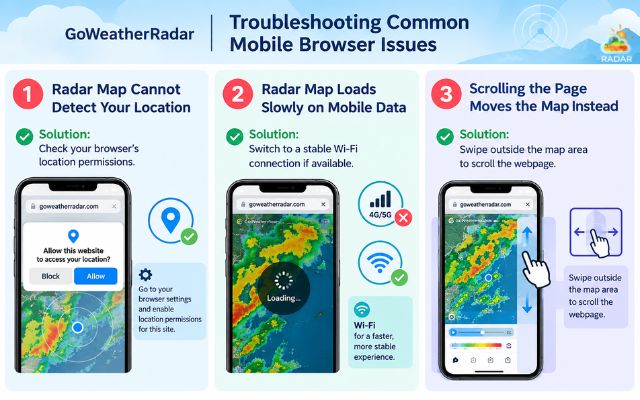
Common mobile browser issues
Mobile Browser vs. Weather Apps: Why Use GoWeatherRadar Web?
GoWeatherRadar lets you check weather conditions directly from your mobile browser.
You can access the radar map without installing a separate app, making it a convenient option for quick weather checks.
-
No Installation Required: Open GoWeatherRadar in Safari or Chrome without downloading an app or using extra storage for installation.
-
Quick and Convenient Access: Visit the website whenever you need to check rain, wind, temperature, or other weather conditions.
-
No App Updates Needed: Access the web-based radar map without manually updating an app through the App Store or Google Play.
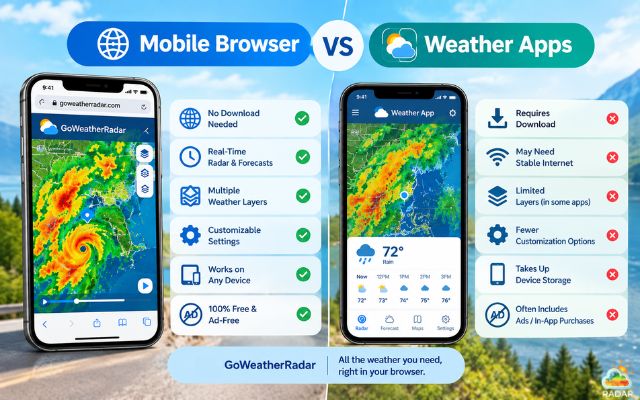
Access radar map without installing an app
Sum up
Learning how to use GoWeatherRadar on mobile browser makes checking weather conditions quick and convenient. You can explore interactive radar maps, switch weather layers, customize settings, and share weather information without installing an app. Open GoWeatherRadar on your phone today to track rain, wind, and changing weather conditions wherever you go.


0 Comments
Leave a Comment
Your email address will not be published. Required fields are marked *