How to Check Local Weather Forecast Accurately & In Real Time on GoWeatherRadar
Want to know whether rain will affect your commute or outdoor plans? Check local weather forecast conditions with GoWeatherRadar’s interactive map. Switch between rain, snow, wind, temperature, and pressure layers, then explore the timeline to review changing weather patterns. Follow this step-by-step guide to understand local conditions and plan your day with greater confidence!
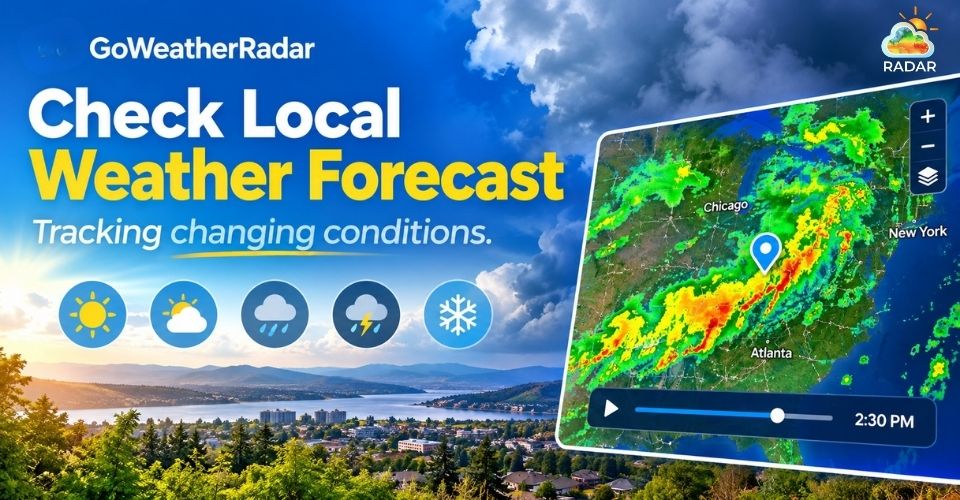
Check local weather forecast
Check Local Weather Forecast on GoWeatherRadar
Are you planning your commute, an outdoor activity, or a weekend trip?
GoWeatherRadar helps you check local weather forecast conditions on an interactive map.
You can explore temperature, rain, snow, wind, and pressure patterns around a specific location, then review available forecast times to make more informed plans.
Ready? Follow these steps to see how it works.
Step 1: Open the Radar Map and Find Your Location
Visit GoWeatherRadar Radar Map and use the location icon to center the map on your current area, if location access is available.
Use the + and − buttons to zoom in or out and explore nearby locations.
Example: If you live in California and plan to visit San Jose, search for the area and zoom in to inspect weather conditions around your destination.
This helps you focus on the location you will actually visit rather than looking at the weather across the entire city.
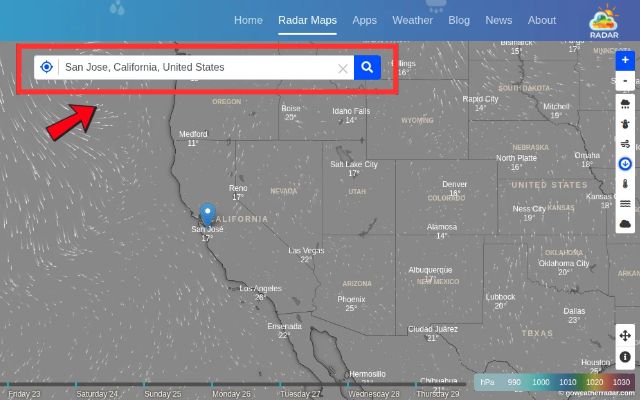
Search for your location in the search bar
Step 2: Select the Weather Layer You Need
Choose the layer that matches the conditions you want to check:
-
Rain: View rain and thunder information, including precipitation accumulation.
-
Snow: Check snow-related precipitation patterns.
-
Wind: Review wind conditions using the displayed speed scale.
-
Temperature: Compare temperatures across nearby areas.
-
Pressure: Explore atmospheric pressure patterns.
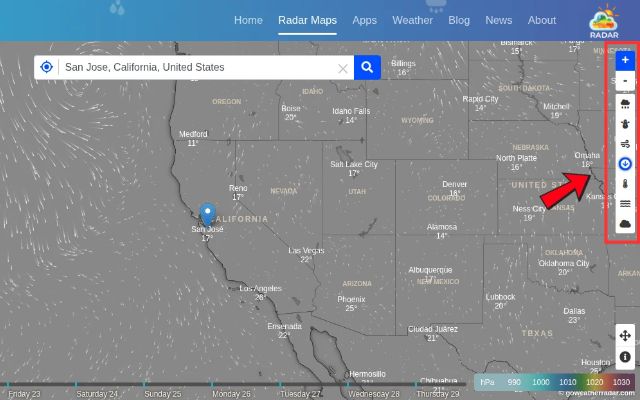
Choose a layer you want to check
Step 3: Read the Map Legend and Weather Units
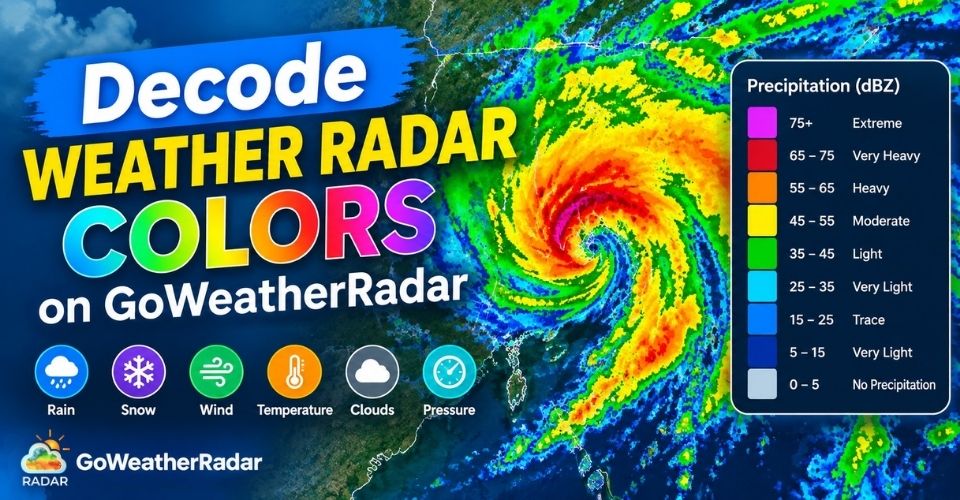
Check the weather radar color for the selected layer before interpreting the map.
Different colors represent different ranges of weather values, so the same color should not be interpreted identically across all layers.
You can also adjust the units in Settings. For example, choose °C instead of °F for temperature or km/h instead of mph for wind speed if those units are more familiar to you.
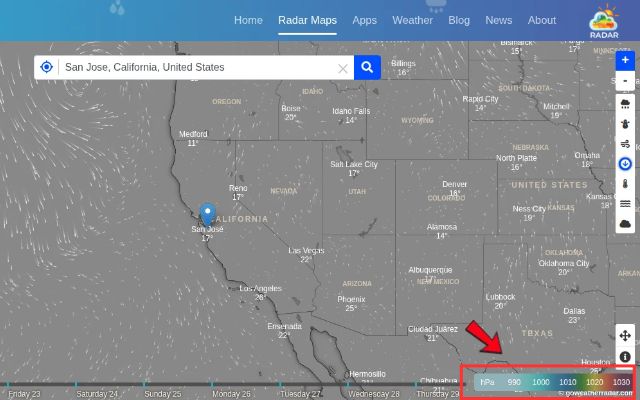
Check the color legend at the bottom of the map
Step 4: Use the Timeline to Review Forecast Changes
Use the Timeline Slider at the bottom of the map to explore the available forecast times. Move between time points and compare the displayed weather patterns to see how conditions may develop.
If you are planning to go cycling in the morning, check the forecast for your intended departure time and compare it with later time points.
Look for changes in the wind and precipitation patterns that could affect your route or schedule.
Keep in mind that GoWeatherRadar displays ECMWF 9 km forecast-model data with a stated update interval of 12–13 hours.
The map should therefore be treated as a forecast tool, not as a continuously refreshed observation of current rainfall.
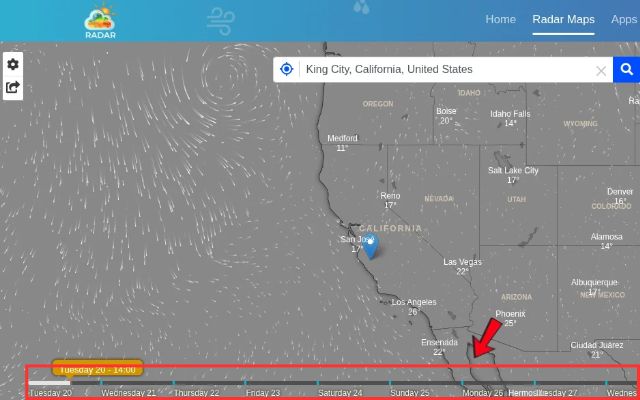
Use the Timeline slider to track weather changes over time
Step 5: Customize Your Weather Settings
Open Settings to adjust the map to your preferences. Available options include:
-
Temperature: °C or °F
-
Wind: km/h, kt, Bft, m/s, or mph
-
Rain: inches or millimeters
-
Snow: inches or centimeters
-
Pressure: hPa, inHg, or mmHg
-
Time: 12-hour or 24-hour format
-
Timezone and language: Select from the available options
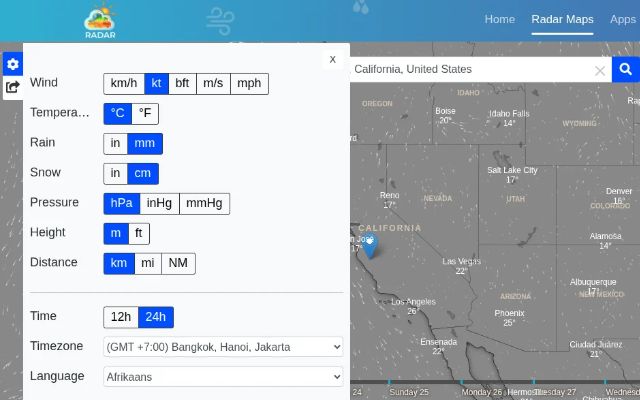
Customize the units to match your needs
Step 6: Cross-Check the Forecast Before Making Plans
Before leaving home, compare the relevant weather layers and check the forecast again closer to your departure time.
If severe weather is possible, consult official local weather alerts as well.
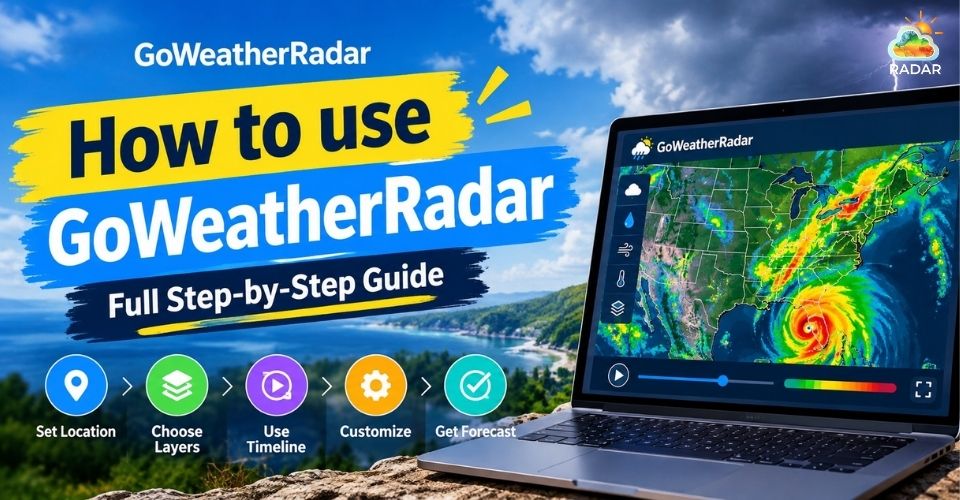
Still confused? Drop by our full guide on How to use GoWeatherRadar!
What to Check in Your Local Weather Forecast
Before heading out, check a few key weather conditions to understand what to expect in your area.
Take a look at the table below to see what to check in a local weather forecast to perfectly plan your day!
|
Weather factor |
What to check |
Why it matters |
|
Temperature |
Local temperatures and changes across nearby areas. |
Choose suitable clothing and plan outdoor activities. |
|
Rain & Snow |
Precipitation areas and accumulation levels shown on the map. |
Prepare for wet roads, slippery surfaces, or snowfall. |
|
Wind |
Wind speeds and the displayed measurement units. |
Assess conditions for commuting and outdoor activities. |
|
Air Pressure |
Pressure patterns and values across your region. |
Understand broader weather patterns that may signal changing conditions. |
Why You Should Use Live Radar to Check Local Weather
A weather map helps you see how conditions vary across your area, while forecast data shows how they may change over time.
GoWeatherRadar combines an interactive map with weather layers powered by the ECMWF 9 km forecast model, helping you check precipitation, wind, temperature, and pressure in one place.
-
See Weather Patterns Across Nearby Areas
A general forecast may not show how conditions differ between nearby locations.
GoWeatherRadar lets you explore surrounding areas on the map and switch between weather layers to compare local patterns.
-
Track Forecast Changes Over Time
Weather conditions can change throughout the day.
Use the map’s timeline to review available forecast periods and see how rain, snow, wind, or temperature patterns may develop.
Check the displayed update interval to understand how frequently the underlying forecast data is refreshed.
-
Plan Daily Activities with More Confidence
Checking weather conditions before leaving home can help you prepare for rain, snow, or strong winds.
Use GoWeatherRadar to review relevant weather layers, then check official local weather alerts when severe conditions are possible.
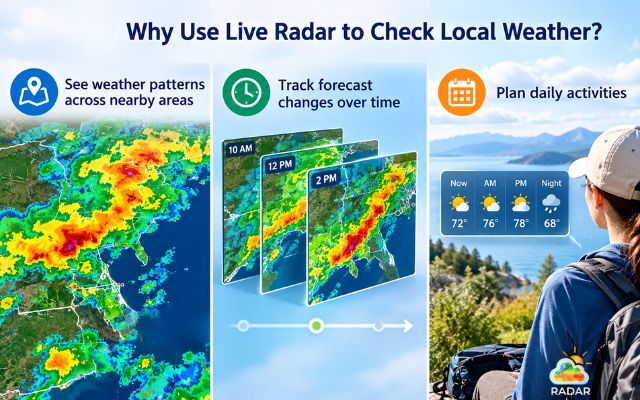
Live radar allows you to track weather forecast changes over time
Final Words
Check local weather forecast conditions with GoWeatherRadar to explore temperature, rain, snow, wind, and pressure patterns in your area. Use the interactive map and forecast timeline to understand changing conditions and plan your activities with confidence. Before heading out, check the latest forecast and consult official weather alerts when severe conditions are possible.


0 Comments
Leave a Comment
Your email address will not be published. Required fields are marked *